Control Widget - Themed Panels
iControl ToolsPersonalization
4.5742.00 Reviews
- Version
- 2.3
- Installs
- 10.00M
- Age Rating
- Everyone
Screenshots
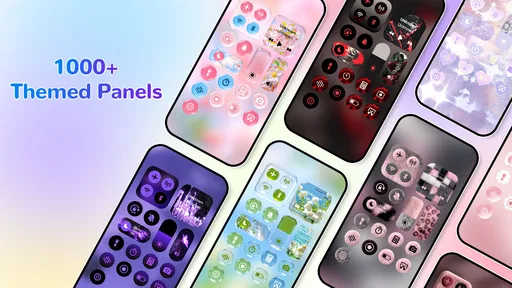
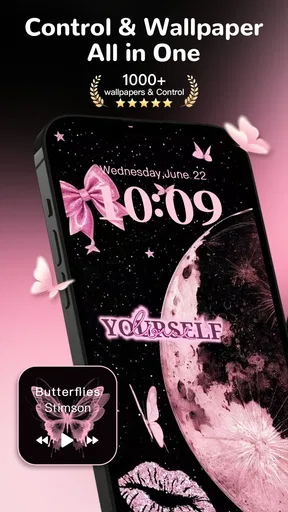
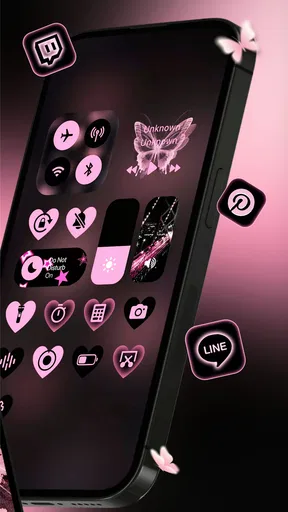
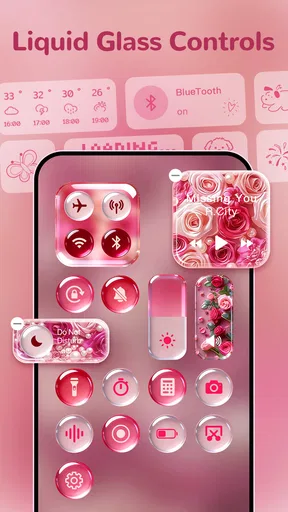
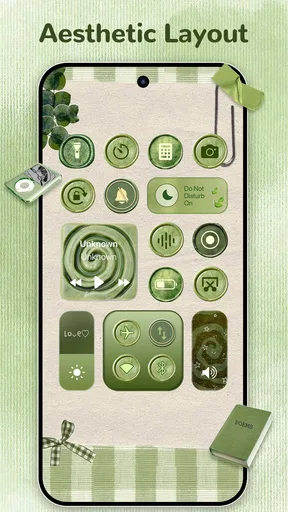
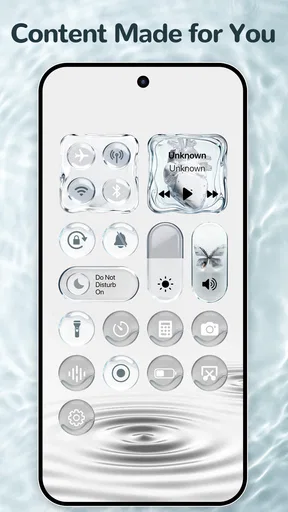
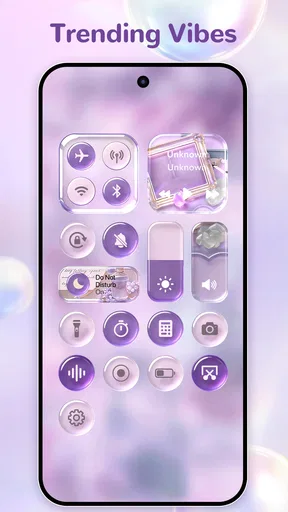
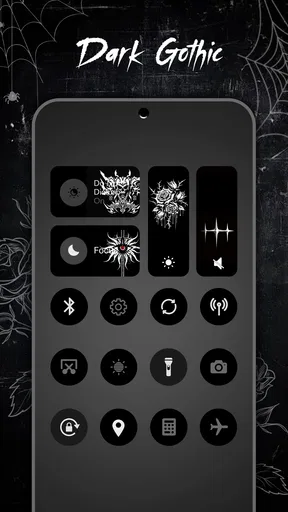
Our Review of Control Widget - Themed Panels
 Analysis by Appyee
The first thing I’d keep in mind before installing Control Widget - Themed Panels is that it’s a personalization app built around making quick controls feel more at home on your screen. It is free to download, though optional in-app purchases range from $2.99 to $29.99 per item. The app is developed by iControl Tools, has an Everyone age rating, and its current version is 1.5. I’d approach it as a way to tailor the look and access of your controls, rather than as a replacement for every built-in phone feature.
What to expect before you start
With a 4.3 average from around 351,000 ratings and over 10 million installs, it has clearly found an audience among people who like adjusting their phone’s appearance. Those figures are useful context, but they don’t tell you whether its style will suit your device or whether you’ll use the panels every day. The practical question is simpler: do you want your controls to be easier to reach or more visually consistent with your home screen?
The app’s premise is appealing if you enjoy personalization but don’t want to rebuild your entire home screen. A themed panel can add a deliberate visual touch while keeping useful actions close by. I’d start with one panel and a clear purpose—such as reaching a setting more quickly—rather than changing several parts of the interface at once. That makes it easier to judge whether the app improves your routine or merely adds another layer to manage.
Getting from installation to a useful setup
For a first run, I’d take a moment to browse the available themes before committing to one. Pick something that remains easy to read at a glance; an attractive design is less useful if its colors or layout make the controls hard to distinguish. Then place the panel where your thumb naturally reaches it and try it during an ordinary task. The goal is not to create a perfect-looking screen in one sitting, but to find a setup that feels convenient.
If you are new to widgets or customization tools, keep the first experiment small. Add a panel, use it for a day, and notice which actions you actually reach for. If you rarely use a control, there is little reason to keep giving it space. This simple trial-and-adjust approach is more helpful than selecting a theme just because it looks impressive in a preview.
Making the first action count
A realistic first test is to use a panel when you are about to leave home: reach for a quick setting or another action you commonly need, then compare that with your normal route through the phone. If the panel saves a few steps without making you stop and search, that is a meaningful win. If you have to remember where a control lives or open the app to find it, the panel may not be placed or configured in a way that helps you.
One small but useful habit is to judge the panel by the task, not by how polished the screen looks. A design that matches your wallpaper can be satisfying, but its everyday value comes from making a frequent action feel more direct. I’d keep the visual choice and the practical test separate: first check that it works for your routine, then fine-tune the appearance.
What can feel confusing, and where it may not fit
Customization apps can create a little uncertainty because a panel’s appearance, its position, and the way you access it all affect the experience. If something does not feel immediate, first consider whether the location is awkward or the design makes the control hard to spot. A visually busy theme may be less useful than a simpler one, especially when you are trying to act quickly. I would also avoid assuming that a themed panel replaces every system shortcut; it is best treated as an added route to selected actions.
The app may be less appealing if you already like your phone’s built-in controls and do not want another element on the home screen. It is also not the right choice for someone who values a completely stock interface over visual customization. In that case, using the controls already available on the device is the simpler option, with no extra theme or panel to arrange.
What’s the Buzz About?
So, you might be wondering, what exactly does Control Widget - Themed Panels do? Essentially, it offers a wide variety of themed panels that you can slap right onto your home screen. Think of them as those little Swiss Army knives that can do a bit of everything. Whether you need quick access to your favorite apps, system settings, or just want to jazz up your display with some snazzy themes, this app has you covered.
Customization Galore
First off, the customization options are pretty expansive. You can choose from a plethora of themes, each with its own unique aesthetic. Whether you’re into sleek minimalism, vibrant colors, or something more quirky, there's likely a theme that’ll catch your eye. It’s like having a wardrobe for your widgets, and who doesn’t love a good wardrobe change?
There is a trade-off to that choice: a theme can make the screen feel more personal, but it can also compete with the icons and wallpaper you already use. I’d preview a few styles and choose one that makes the controls recognizable rather than simply picking the boldest design. If you change themes often, give each one enough time in daily use to decide whether its look stays comfortable and legible.
Ease of Use
Now, let’s talk usability. I found the interface to be incredibly intuitive. Setting up the panels is a breeze, even for someone who might not be the most tech-savvy. Just a few taps and you’re ready to roll. Plus, the app doesn’t hog your phone’s resources, which is a huge plus in my book. No one likes a sluggish phone, right?
For someone deciding whether to keep it, the useful measure is whether setup stays simple after the initial novelty wears off. A panel is worthwhile when you can reach the action without thinking about the app behind it. If you find yourself reopening the customization screen repeatedly to rearrange things, that may be a sign to simplify your layout rather than keep adding options.
Functionality Meets Style
Beyond the aesthetics, these panels are all about functionality. Need to toggle your Wi-Fi or adjust your screen brightness on the fly? No problem. Want a quick way to check your calendar or control your music? It’s all there. It’s like having a control center right at your fingertips, which makes navigating your phone a whole lot smoother.
The key trade-off is that a shortcut is most valuable when it fits a habit you already have. For example, if you often adjust brightness when moving from outdoors to indoors, making that action easy to reach could be more useful than filling a panel with controls you rarely touch. Think about the moments when you usually pause to navigate menus, and build around those moments instead of trying to expose everything at once.
It is also worth remembering that the same action can have different levels of convenience depending on the phone and the way you use it. A control you can already reach quickly may not benefit much from being placed in another panel. I’d use the app to complement the shortcuts you rely on, not duplicate every setting simply because it is available.
Compatibility and Performance
And here’s the kicker: Control Widget - Themed Panels plays nicely with both Android and iOS. So, whether you’re team Android or an iOS aficionado, you’re in luck. I didn’t experience any crashes or glitches during my time with the app, which is always a relief. Stability is key, and this app delivers.
The Android release is listed for devices running version 6.0 or later. If you are choosing between this and your phone’s standard quick settings, I’d base the decision on what you want to change. Built-in controls are usually the more direct choice when you simply need dependable access; this app makes more sense when the themed presentation and home-screen convenience are part of the appeal. It is a personalization tool first, so its value depends on whether you want that extra layer.
It launched on June 12, 2025, and the free download makes it easy to try the basic idea before deciding whether it belongs in your routine. I’d pay attention to the in-app purchase prompts as you explore, since paid items are optional and priced individually. There is no need to buy anything just to answer the main question: does a themed panel make your own phone easier or more enjoyable to use?
Choosing whether to keep it
I’d recommend giving it a try if you like a personalized interface, regularly use quick settings, and are happy to spend a little time choosing a layout. It may be especially appealing if you want frequently used actions within reach without changing the rest of your home screen. On the other hand, if your current controls already feel fast and you prefer a clean, untouched interface, you are unlikely to gain enough to justify adding another customization layer.
For a fair test, begin with one theme and one everyday task, then leave the setup alone long enough to see whether it becomes second nature. If it does, you can refine the panel around the actions you actually use. If it doesn’t, removing it and returning to your normal controls is a reasonable outcome—not every useful-looking widget deserves a permanent place on every phone.
In summary, if you’re looking to spruce up your smartphone’s interface while adding a dash of convenience, Control Widget - Themed Panels is definitely worth a try. It’s sleek, it’s functional, and it’s just plain fun to use. So go ahead, give your home screen the upgrade it deserves!
Verdict
Strengths of Control Widget - Themed Panels
- Highly customizable interface.
- Smooth integration with other apps.
- Wide range of themes available.
- User-friendly setup process.
- Minimal impact on battery life.
Limitations of Control Widget - Themed Panels
- Limited free features.
- Occasional widget lag.
- Some themes require purchase.
- Ads in the free version.
- No offline support.
Similar Picks in This Category
View All
Microsoft SwiftKey AI Keyboard
SwiftKey4.3

Wallpapers
Google LLC4.1

Zedge™ Wallpapers & Ringtones
Zedge4.7

Yandex Browser with Alice AI
Direct Cursus Computer Systems Trading LLC4.3

Ringtone Maker:create ringtone
Big Bang Inc.4.7

Fonts Keyboard
Fonts Keyboard3.9
Frequently Asked Questions
What is Control Widget - Themed Panels and what does it do?
Control Widget - Themed Panels is a customizable widget app that allows users to enhance their device's home screen with beautifully designed panels. It provides themed widgets for quick access to essential functions like Wi-Fi, Bluetooth, and brightness settings, offering a seamless and personalized user experience.
Is Control Widget - Themed Panels available for both Android and iOS devices?
Yes, Control Widget - Themed Panels is available for both Android and iOS platforms. Users can download the app from the Google Play Store for Android devices and the Apple App Store for iOS devices, ensuring compatibility with a wide range of smartphones and tablets.
How user-friendly is the customization process in Control Widget - Themed Panels?
The app is designed with user-friendliness in mind, offering an intuitive interface for easy personalization. Users can select from a variety of themes and adjust settings with a few taps, making it accessible even to those who are not tech-savvy. The app also provides step-by-step guides to assist with customization.
Are there any in-app purchases or subscriptions required to access all features?
Control Widget - Themed Panels is free to download, but it offers in-app purchases for premium themes and advanced customization options. While basic features are accessible to all users, purchasing additional content can enhance the app's functionality and aesthetic appeal.
Does Control Widget - Themed Panels consume a lot of battery or system resources?
The app is optimized to run efficiently without significantly affecting battery life or system performance. It uses minimal resources by only updating widgets as needed, ensuring that your device remains responsive and power-efficient while providing a visually appealing experience.
